Guide
Good things to know when you first start using it.
The basics
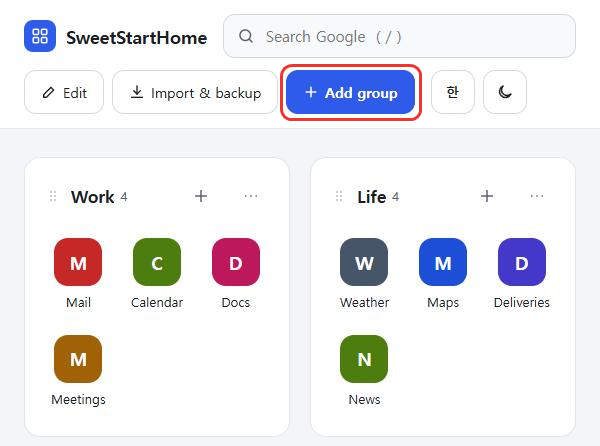
- Create a group: Press Add group at the top right and give it a name like “Work” or “Shopping.”
Show picture
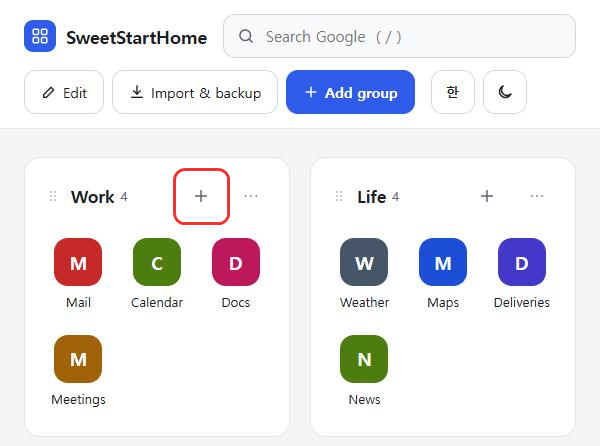
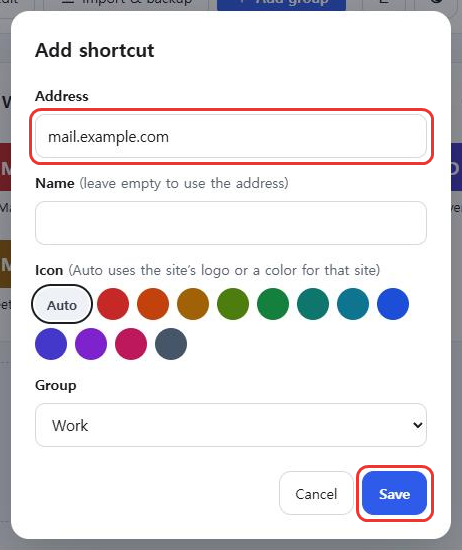
- Add a shortcut: Press the + to the right of a group and paste an address. If you leave the name empty, the address is used as the name.
Show picture
- Change the order: Drag a shortcut or a group with the mouse and drop it where you want. Drop a shortcut on another group to move it there.
Show picture
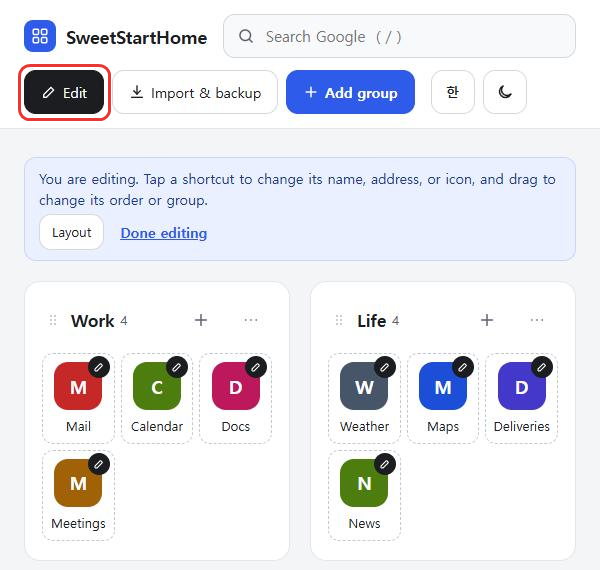
- Change an icon’s color: Each site gets a color automatically, and its logo is shown when it can be loaded. To pick a color yourself, go to Edit → the shortcut → Icon. You can change the name and address in the same window.
Show picture
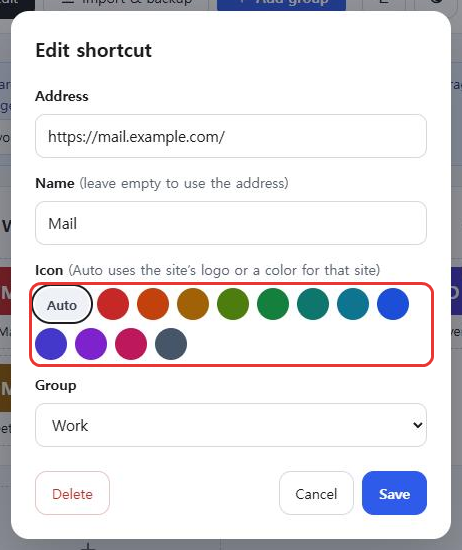
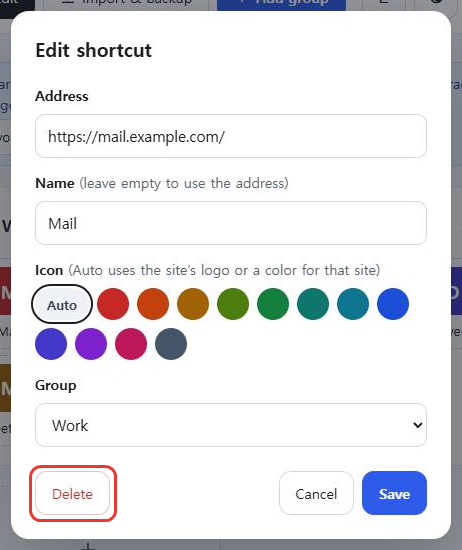
- Delete: Delete a shortcut with Edit → the shortcut → Delete. To delete or rename a group, use the ⋯ button to the right of the group.
Show picture
- Groups per row: Press Edit, then Layout in the bar that appears. You can choose separately for PC (Auto or 2–5) and phone (1 or 2). The right one is applied automatically based on your screen width, and on a PC the number shrinks automatically when the window is narrow.
Show picture
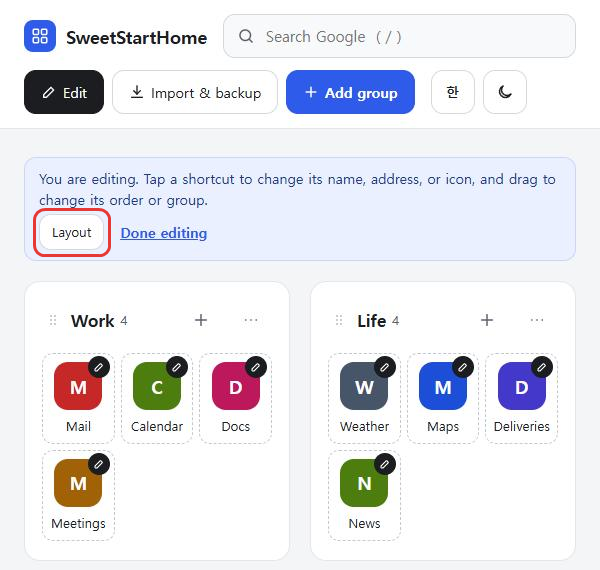
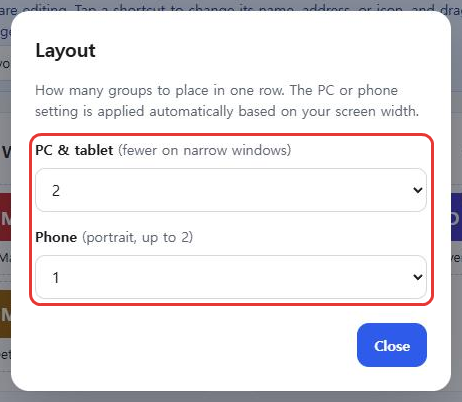
- Web search: Type in the search box at the top and press Enter to open Google search results. Press / on your keyboard to jump straight to the search box.
- Find a shortcut: If you have many shortcuts, press Ctrl + F (on a Mac, ⌘ + F; on a phone, “Find in page” in the browser menu) and type its name.
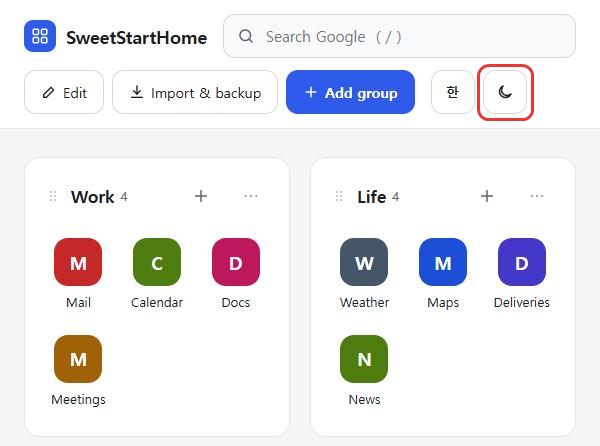
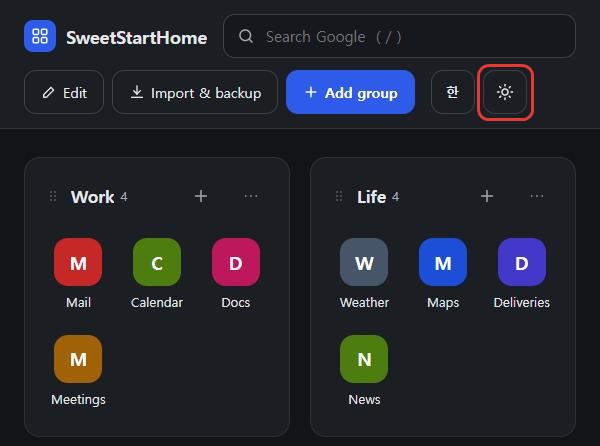
- Dark mode: Press the moon button at the far top right to switch to a dark screen, and the sun button to make it light again.
Show picture
- Language: Press 한 at the top right to switch to Korean, and EN to come back to English. Your choice is remembered in this browser.
Set it as your browser’s start page
It’s much handier when this page opens every time you start your browser. Menu names may differ slightly depending on your browser version.
Chrome
- Open ⋮ at the top right → Settings.
- In the left menu, choose On startup.
- Choose Open a specific page or set of pages, then press Add a new page.
- Paste this site’s address and press Add.
Edge
- Open ⋯ at the top right → Settings.
- In the left menu, choose Start, home, and new tabs.
- Under When Edge starts, choose Open these pages, then press Add a new page.
- Paste this site’s address and press Add.
Import Chrome or Edge bookmarks
Export the bookmarks you already have to a file, then choose that file in Import & backup on this page. Your bookmark folders become groups.
Export from Chrome
- Press Ctrl + Shift + O to open the Bookmark manager.
- Press ⋮ at the top right → Export bookmarks and save the .html file.
Export from Edge
- Press Ctrl + Shift + O to open Favorites.
- Press ⋯ → Export favorites and save the .html file.
Back up and move to another PC
Your start page setup is saved only in the browser you are using now. So you need a backup in cases like these.
- You want to use the setup you made on your work PC on your home PC too
- You clear cookies and site data with your browser’s “Clear browsing data”
- You reinstall your browser or get a new PC
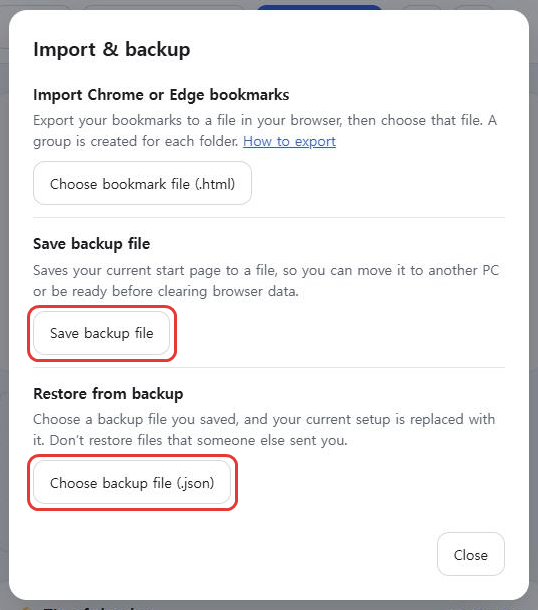
Save a file with Import & backup → Save backup file. In the new place, choose that file with Restore from backup, and everything moves over as it was.
Show picture
Use it safely
- Only restore backup files you saved yourself. A backup file someone else sends you may contain fake (phishing) site addresses.
- For important sites like your bank or card company, double-check that the address is the official one when you add it.
- This page saves only http and https addresses as shortcuts. Addresses that run programs are not saved.